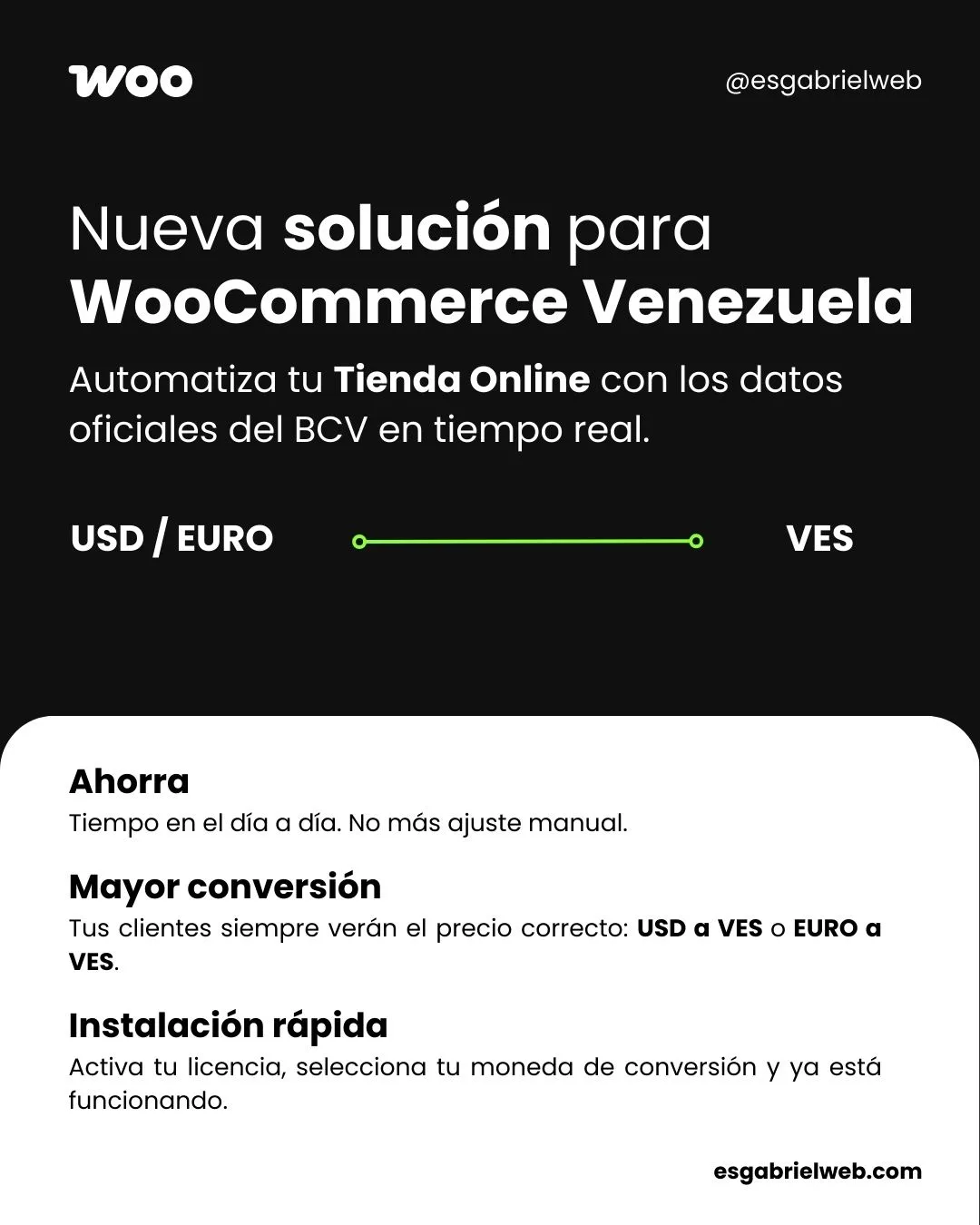
How to Automate the BCV Rate in WooCommerce: The Definitive Guide for 2026
Managing an online shop in Venezuela involves a daily challenge: the constant price update according to the Central Bank of Venezuela.
If you still do it manually, you're wasting valuable time and risking calculation errors that affect your profitability. In this guide, we teach you how to Plugin Rate BCV WooCommerce for WordPress can transform your workflow this 2026.
Why automate the BCV Rate in your WordPress store?
Keeping exchange rate parity up to date is not just a logistical need, it is a competitive advantage. By using a BCV WooCommerce Rate Plugin, you get immediate benefits:
- Total Precision: Forget human errors when transcribing the daily rate.
- Time Saving: The system takes care of the update while you focus on selling.
- Customer Trust: Your users will always see the right price based on the official BCV rate.
Main features of the Plugin Rate BCV WooCommerce
This plugin has been designed under a clean-code philosophy and high performance, avoiding overloading your server with unnecessary bookstores:
- Automatic synchronization: Direct connection to the official data of the Central Bank of Venezuela.
- Total compatibility: It works perfectly with the latest versions of WooCommerce and WordPress.
- Configuration in 1 Clic: Designed so that any business owner can install it without advanced technical knowledge.
Step by Step: How to configure automation
Installation: upload the plugin file to your WordPress directory.
Activation: Activate the plugin license and head to WooCommerce settings and change your currency to USD or EURO the plugin will automatically convert in real time.
Dual: In the Currency tab you can show the dual price: Customers will see the price in Bs. with the equivalent in USD or EUR next door. Example: Bs. 8.399.75 ($20.00)
Customization: Select the update frequency every 4 or 24 hours and get ready! Your prices will be adjusted automatically.
You have at your disposal different short:
- With [bcv _ timer] it shows the current BCV rate next to a 10-minute regression timer. The counter is synchronized between pages: if the user sails from Carrito to Finalize Purchase, time continues from where it was
- With [bcv _ rate] it shows only the updated BCV rate without a timer. Accept the currency attribute = to specify the currency.
[bcv _ rate currency =»USD» ]
[bcv _ rate currency =»EUR» ]
Example of [bcv _ timer]: